Introduction
The following steps will help you navigate the process to create a position in Interfolio’s Faculty Search (FS) which includes:
- Defining characteristics of your search
- Drafting your advertisement (job posting) content
- Identifying the search committee
- Articulating application requirements
- Setting up evaluation criteria
- Routing the position for approval prior to posting
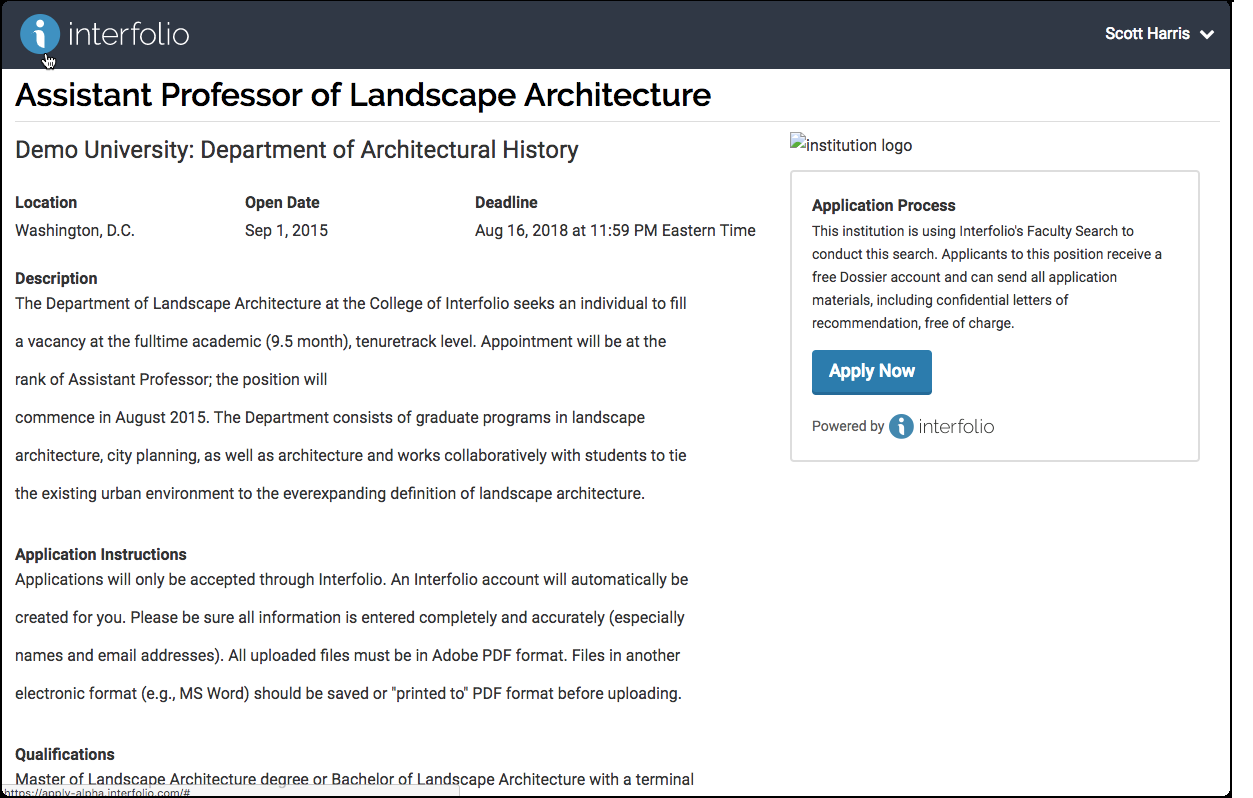
Through this process, FS will generate a landing page with a unique URL that will serve as the portal through which job seekers submit their applications. A example of an FS landing page is illustrated below.
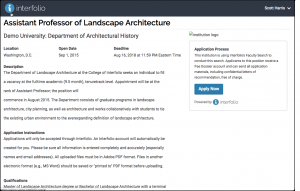
Following this user guide will also help you create a position that is in compliance with new UW standards which will smooth the approval process and speed up the time to posting.
Preparation steps
This guide is intentionally minimal so users—especially first time users—have a concise reference that covers the basics of setting up a search. Interfolio, however, has a wide variety of additional functionality to support or enhance the search process including information on how to leverage analytics/report features.
The full menu of FS guides is available at Help for Interfolio Faculty Search or by clicking your name in the top right corner of the FS window and selecting Product Help. Be aware, however, that Interfolio’s FS guides will not have UW-specific recruitment requirements and may not reflect institutional settings UW has put in place for UW users.
Understanding the applicant view
It may be useful to familiarize yourself with the process from an applicant’s point of view. Please review Job Applicant’s Guide to Interfolio Faculty Search for more information on the applicant experience.
Understanding Interfolio user roles
FS has a variety of distinct user roles that carry different levels of access.
Administrator
Every hiring unit must have at least one assigned Administrator and can have more than one. FS Administrators are typically staff who are well-versed in coordinating academic personnel recruitment.
College-level Administrators are assigned by UW Academic Personnel and can create, supervise, manage, monitor, and close searches at the college level or in any department within that college; department-level Administrators are assigned by the college-level Administrator and can create, supervise, manage, monitor, and close all searches at the department level.
Committee Manager
Assigned by Administrators to coordinate a particular search; can edit settings and statuses, view reports, communicate with applicants. This is an optional role. Please review the BEST PRACTICE box to the right.
Evaluators
Assigned by department-level or college-level Administrator; appropriate role for members of the search committee charged with viewing, reviewing, and rating applications; cannot create/edit positions.
EEO Officer
This role is reserved for the EEO Compliance Manager/EEO Officer at UW.
Logging in and setting position type
To log in, go to Interfolio login and click the Partner Institution button. Start typing “washington” or select University of Washington from the drop down menu. Click Sign In. For users without a UW ID, create a Google account and then select sign in with: Google. Note: Recommended browsers for Interfolio Faculty Search are Chrome, Mozilla and Safari.
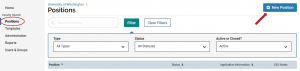
Once you log in, you should land on the Positions page. If the page header does not say ‘Positions’, select the Positions option from the side menu. If you have Administrator access, you should see any positions to which you have access displayed in a table. To create a new position, click the New Position button in the top right corner of the window.
Setting a Position Type
A window will open and you will need to choose the most appropriate level of your position from the Select Type drop down menu. The Position Type will determine the approval routing for your position.
UW has six unique Position Types – three for departmentalized units and three for undepartmentalized units. Which position type you choose will depend on the title of your position, whether it is on your hiring plan, and whether the draft advertisement requires review by the Office for Academic Personnel and Faculty (APF). 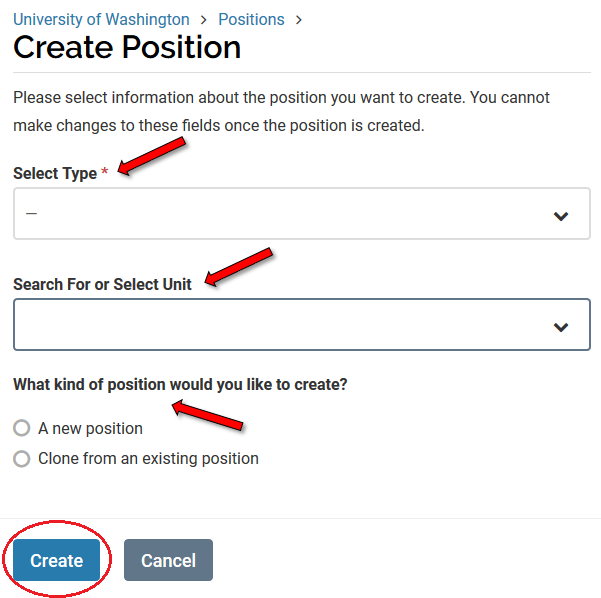
Select the appropriate Position Type from the drop down menu.
After selecting the position type, you will need to select the unit where the new position will be located from the ‘Search For or Select Unit’ drop down menu. All UW appointing units should be loaded into the menu. If you don’t see your unit, contact the Office for Academic Personnel and Faculty.
Finally, you can choose to either create the new position from scratch or clone (use settings from) an existing position. If you clone a position, you will have the opportunity to edit aspects of the position you wish to change from the original but be aware that cloning a position also clones any institutional information (vaccination requirements, etc.) that was automatically added to the original posting that may now be outdated. Best practice is to either copy and paste only the information wanted or to create a new position from scratch.
Important points to consider before clicking Create:
- Once you set the Position Type and click Create, you will not be able to edit the Position Type. If any of the approvers determine that the Position Type needs to be corrected, you will have to start the Create a Position process from scratch. With that in mind, the following two points are critical.
- Units who are unsure whether their position’s rank/title is eligible for permanent residency should carefully review the list of titles on the Permanent Residence Sponsorship page. Even if you have no intention of sponsoring the future hire for permanent residency, if the rank/title is on the eligibility list, it you must choose the 1-DEP (for departmentalized colleges/schools) or 1-UNDEP (for undepartmentalized colleges/schools) Position Type.
- Units who are unsure whether their position’s rank/title is required to appear on their hiring plan should reach out to their dean’s office for confirmation. Hiring plan requirements may change from year-to-year and units will need the hiring plan number—as applicable—to complete the Create a Position process, so consulting the dean’s office is always a good idea.
To move to the next step, click Create.
Defining the position
Provide general information about the position
In this section, you will provide basic information related to the position/search.
- Position Title – To create continuity that supports reporting and a user-friendly applicant interface, position titles should start with the rank, then title, then area of specialization/assignment, all spelled out (e.g., Assistant Professor of History or Associate Librarian – Biological Sciences). This title order and avoiding the use of abbreviations is especially important because it helps applicants effectively navigate the UW Academic Personnel Job Board and will help you easily find positions on your positions list.
- If the appointment is Visiting, Affiliate, Acting, or Clinical, this identifier should be added before the rank (e.g. Clinical Associate Professor in Epidemiology).
- If you are conducting an open rank search for a single position, it is recommended you note it is open rank and identify the discipline. (e.g., Open Rank Faculty Position in Biology or Assistant or Associate Professor of Dance); if searching for multiple positions of different ranks, note the possibility of multiple hires and identify the discipline (e.g., Open Rank Faculty Positions in Accounting).
- If this is a hiring plan position, the rank and title must be consistent with what was approved on your hiring plan.
- Location – Enter the city and state of your campus.
- Position Type – This field is auto populated from the selection you made on the previous screen.
- Position Opens – This is the date when the position goes ‘live’ and starts accepting applications. Regardless of what date is entered, the position won’t go live until it has been reviewed and approved through the approval chain. Depending on the volume of searches and whether approvers have questions or request changes, the approval process could take a few days. Units should have realistic expectations when setting a Position Opens date.
- Position Closes – This is the date that you want to stop receiving applications. Your search will not actually close when you reach this date, but new job seekers will not be able to apply. Evaluators will still be able to access and review applicant materials.If you wish to continue receiving applications beyond the initial application deadline, you can either leave this field blank or simply edit the Position Closes date to a later date when you are ready to start receiving applications again. Extending the Position Closes date after the search has been approved will not require another round of approvals. If your position is eligible for sponsorship for permanent residency, you must review the BEST PRACTICE recommendation below.
Building the job posting
The following text fields combine to serve as the position announcement visible to applicants. Advertisements posted in journals, listservs, and other recruitment outlets should mirror the language entered here. Administrators should ensure the content of these sections aligns with search committee and/or unit leadership expectations for the position and the search.
Units that anticipate the potential to hire a non‑U.S. worker whom they may wish to sponsor for permanent residency should carefully review additional requirements for position descriptions, qualifications, and advertising as outlined by the UW International Scholars Operations team in Permanent Residency Requirements.
In accordance with University guidance, faculty and academic job postings must use the standardized job posting guidelines created by UW Human Resources (UWHR) and the Office for Academic Personnel & Faculty (APF). The language included in these guidelines regarding application instructions must be used without modification.
Units have discretion to develop the position description and determine required and preferred qualifications consistent with University policy. Application instructions in the standardized templates may not be modified, and units may not require or request a separate diversity statement.
Position description
In the Position Description field, clearly describe the position and invite job seekers to apply. When using the required template, units must not alter the standardized language pertaining to contributions to teaching, mentoring, research, service, or (when applicable) clinical care that support a welcoming and inclusive environment.
At a minimum, this section must include:
- Appointing unit
- Rank and title (as listed on the Academic Titles and Ranks web page)
- Discipline/Area of specialization and sub-discipline if applicable
- Indication of full or part time status or potential for either
- Service period (e.g., “Assistant Professors in the Department of Physics have an annual service period of nine months [Sept 16-June 15]”; “UW Librarians have an annual service period of 12 months [July 1-June 30]”)
- Relationship to tenure (i.e. tenured, tenure eligible, without tenure by reason of funding, non-tenure eligible)
- Anticipated start date
- Number of positions your search is approved to hire (e.g., The College of Built Environments invites applications for up to three full-time Lecturer positions in…)
- Brief essential functions or expectations of the position (e.g. The successful candidate will be expected to…). If creating a faculty position, be clear about what teaching duties, if any, the position involves including classroom instruction, mentoring, supervising, and/or lab instruction. (Specific language to include at end of job description for postdoctoral scholar titles.)
- Monthly base salary range and other planned compensation for the position. See Salary Disclosure in UW Academic Job Postings for required language.
Required standardized language:
All faculty postings must include the APF/UWHR‑approved language regarding past experiences and/or future plans for fostering a welcoming and inclusive environment as embedded within statements on teaching and mentoring, research, service, and where applicable, clinical care. This language is pre‑included in the templates and may not be revised.
Qualifications
In the Qualifications field, enter required qualifications and desired/preferred qualifications, as applicable. Remember to consult with search committee and/or unit leadership on qualifications before entering them into FS.
Units who anticipate the potential of hiring a non-U.S. citizen whom they would want to sponsor for permanent residency should carefully review additional information and considerations regarding qualifications as outlined by the UW’s International Scholars Operations team at Permanent Residency Requirements.
Application Instructions
Only the approved Applicant Instructions included in the standardized template may be used. These instructions cannot be modified or supplemented. Units may not request a separate diversity statement or add any additional application‑related requirements beyond what appears in the template.
All application materials should be submitted through or uploaded to Faculty Search. Be clear about what materials are required and the preferred or required formats. See Accepted File Types and Document Types for guidance. The instructions in this field must match the documents selected later in the Faculty Search setup process.
Use this section to specify the initial review deadline, if applicable (e.g., “Complete applications received by October 15, 2026, will be given preferred consideration.”).
Required statements
Every job posting must include required statements regarding equal opportunity employment, benefits, privacy, disability services. The Office for Academic Personnel & Faculty has configured Faculty Search to automatically populate the job posting with these statements.
Last updated July 31, 2026
Setting evaluation criteria
For all FS searches, the UW requires that the unit define criteria by which it will evaluate applicants. Criteria will be entered into FS and evaluators will assign a rating to each criterion when they are reviewing applications. These criteria are commonly referred to as a rubric.
The criteria should include all required (minimum) and desired/preferred qualifications listed in the ad. Criteria may also be built around job duties or expectations of the position. Candidates who do not meet the required (minimum) qualifications may not be hired into the position.
Only those with Administrator or Committee Manager roles will have the ability to set up evaluation criteria for a given search, but they should do so only after consulting with the search committee, search committee chair, or unit leadership as applicable. Applicants will not be able to see the evaluation criteria.
You may skip this step if your search committee has not yet established its criteria, but criteria must be entered before the search committee begins reviewing applications.
Enter evaluation criteria
To enter evaluation criteria, click the Add Criterion button. You will be prompted to enter the title of the criterion.
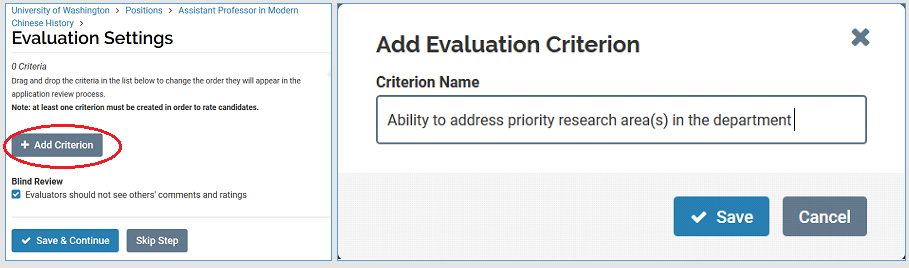
The text field allows for several dozen characters, so you can be detailed (e.g. “Demonstrated commitment to public affairs, public policy, or the nonprofit sector”). Evaluators will be prompted to assign a rating of one to five stars for each criteria.
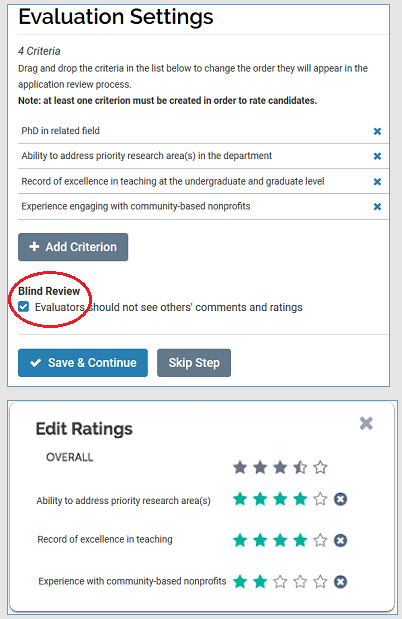
If different criteria are used at different stages of the search (e.g., criteria for initial review, criteria for interviews), the search committee/search committee chair/unit leadership should outline which criteria apply to which stages so the Administrator can enter them in the appropriate order.
Administrators can also add later-stage criteria when the search reaches that particular stage.
The example on the bottom right shows what evaluators will see when rating an applicant.
Blind review
Units have the option of setting the search for ‘blind review’ which means an evaluator will only be able to see ratings they assign and not ratings assigned by other evaluators. Check the Blind Review box to enable this feature. Click Save & Continue.
For more information on custom ratings criteria and/or blind review, visit Establish Custom Ratings Criteria and/or Set Up a Blind Review.
Last updated October 29, 2025
Attaching custom forms
FS allows units to create custom forms to gather additional information from applicants. Additional forms can be created specific to the search, department, or college. To select from a list of forms your unit/college already has available, click Add Form, select the desired form from the drop down menu, and click Save. You can click Preview to see how the form will appear to applicants. When you are finished adding forms to your search, click Save & Continue.
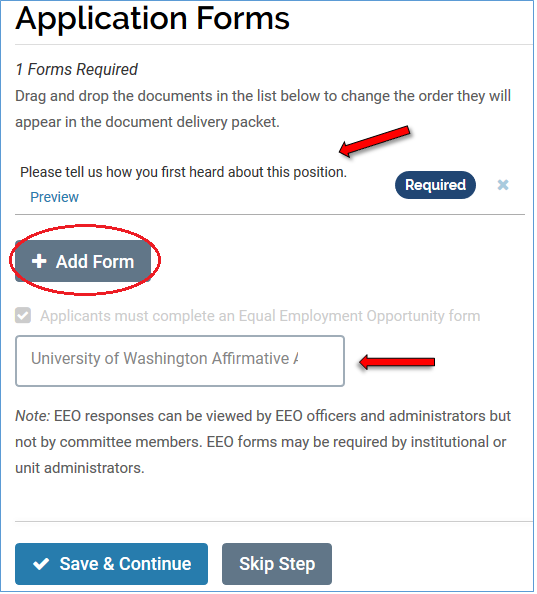
If the form you need doesn’t already exist, you will need to create one. To complete that step, you will need to go to the Administration Dashboard which is outside the Create a Position process. To learn more about creating forms, visit Create a Custom Application Form.
UW required forms
UW has already created 3 forms: a ‘Where did you hear about us?’ form, an EEO survey form, and a sexual misconduct declaration form. All 3 will automatically appended to your position and included in the application process for every applicant. There is no action required from department or college and these forms cannot be changed or deleted.
Automatic inclusion of the EEO survey in the application process eliminates the need for units to coordinate the former Catalyst survey. Because the Office for Academic Personnel and Faculty and FS Administrators can run real-time reports on applicant flow data through Interfolio, FS eliminates the need for units to submit the Applicant Flow Report as was required in the past.
Last updated August 18, 2022
Set up the search committee
To extend Evaluator access to personnel who will serve on your search committee, those individuals must be added to the search in FS. Units within SOM should follow SOM’s process and guidance. Units outside of SOM should not extend Evaluator access to these personnel until verifying completion of the required APF training for faculty search committees. See the Adding Evaluators to the Search Committee tab in the Managing a Position User Guide for detailed instructions on when Evaluator access can be granted.
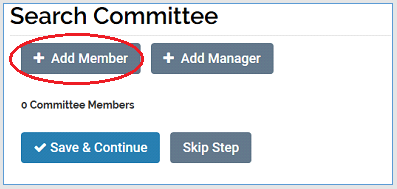
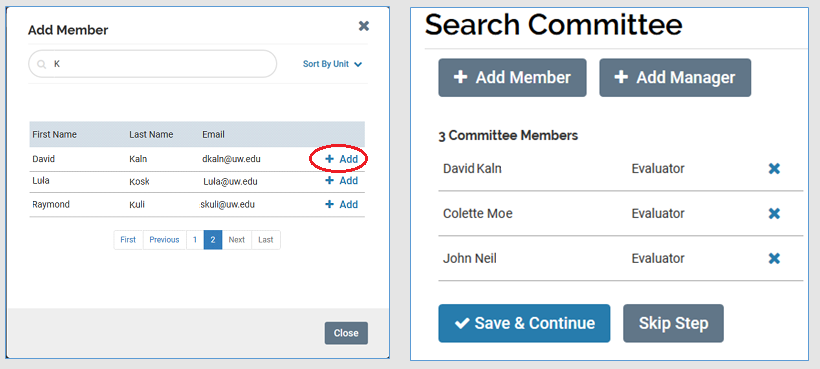
When ready to extend Evaluator access, click “Add Member” to view UW personnel already loaded in as FS users. You can search by name, unit, or email, or use the search field to enter a keyword. Once you locate the person you are looking for, click Add. Repeat this process until you have added all search committee members.
 To remove a search committee member, simply click the X. Otherwise, click Save & Continue. If you don’t see the individual you are looking for on the User list, you have the ability to add them. To learn more about how to add an Interfolio Faculty Search user, visit Add New Users – Faculty Search.
Note: Administrators are added as Committee Managers by default and should not be removed from this role. Administrators must be in the Committee Manager role when a position is closed to ensure the position follows the established approval workflows. Due to limitations of the tool, Administrators cannot be re-added once removed from the role. Additional Committee Managers can be added as needed.
Last updated August 18, 2022
Internal notes
The Internal Notes section is an FS feature that is used in different ways by different institutions. This section will never be seen by applicants, but is visible to anyone on the search with Evaluator, Committee Manager, or Administrator FS roles, as well as anyone on the approval chain.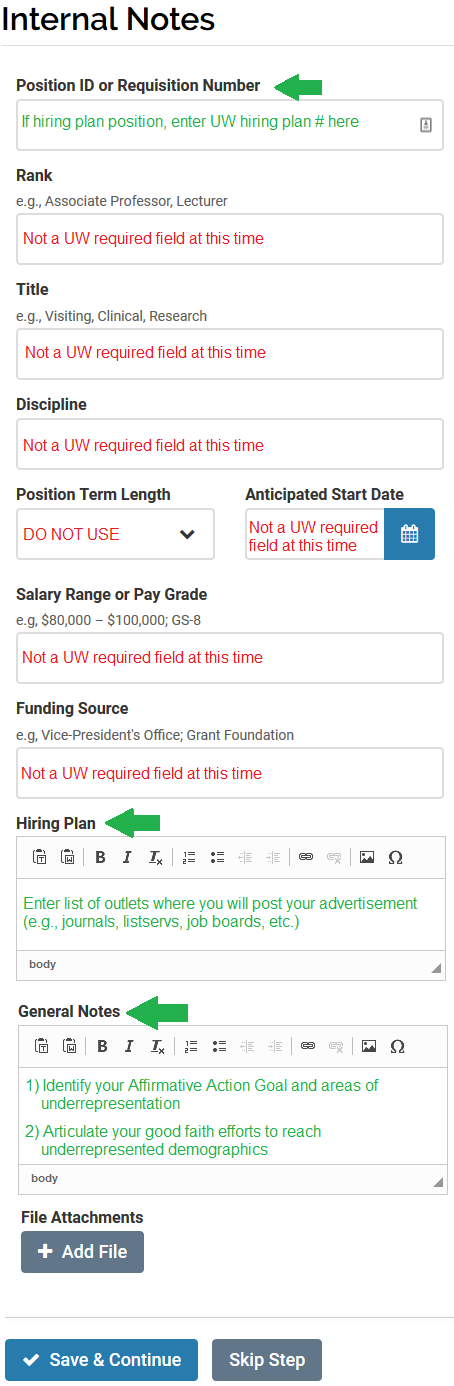
UW uses this section to collect important information about your search goals. Although many fields in the section are optional, UW requires the following fields be completed as articulated below and illustrated on the graphic:
Position ID or requisition number
If your position is part of an approved hiring plan, you must enter the UW hiring plan number in this field. The Office for Academic Personnel and Faculty will look to this field before approving the search.
Hiring plan section
In this section, units must provide a list of outlets (e.g., journals, listservs, job boards) where you will post your job advertisement. You are welcome to post in additional outlets beyond what you list here, but you will be expected to post in any outlets listed in this section.
General notes
In this section, units must:
- Identify your unit’s Affirmative Action Program Placement Goals. Visit the Office of EOAA Affirmative Action Plan and Resources page to understand ongoing federal disability and veteran employment utilization goals and hiring benchmarks.
- Articulate your good faith efforts to ensure an inclusive candidate pool and unbiased recruitment practices for equal opportunities.
Last updated April 23, 2025
Routing for approval
Once you have completed the steps to Create a Position, a Review screen will pop up that includes all the information entered during the Create a Position process. Before clicking the Submit for Approval button, check through all the sections to make sure they are complete and content is compliant. 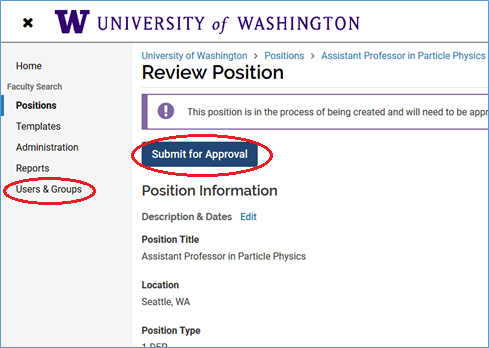
If you skipped entering the search committee or evaluation criteria, remember to edit the position and add that information before applicant screening begins. Academic Personnel will not hold up your posting if these sections are incomplete, but the hire into Workday will not be approved until all information is accounted for.
If your chair or dean has recently changed, you may want to double check that they have been assigned the proper approval title.
To check, click Users & Groups in the left column menu. Search for your approver by typing his/her name into the search field. To serve as a Chair or Dean/Chancellor approver, the individual (or their delegate) must be given the Administrator role and then the Chair or Dean/Chancellor title. For more information on assigning approver titles, please review Add additional administrators as approvers.
If you are confident the position and search information is correct, click Submit for Approval. The information you entered throughout the Create a Position process will be routed to a chain of approvers predetermined by the Position Type you selected early on in the process (i.e., 1-DEP, 1-UNDEP, etc…). All FS searches at UW must be routed for approval prior to internal and external posting.
An email will be sent to the approvers notifying them a position requires their approval. Units may continue to edit and prepare the position while awaiting approval. You will receive a notification once your position is approved or if changes need to be made to the position.
Revising the position during the approval process
Should approvers require or suggest changes to your position, you will receive an email notification with the required/requested change and directions on next steps.
Once you have revised your position, you will need to resubmit your position for approval. You will receive a notification once it is approved and you are authorized to proceed with your search.
Last updated August 18 2022
Reviewing and publishing the position
Open the position
Once you get notification that your position is approved, you are ready to complete the final steps to open your position. In order for applicants to apply, the position must be published to the UW Academic Personnel Job Board and its status set to accept applications.
Set initial status
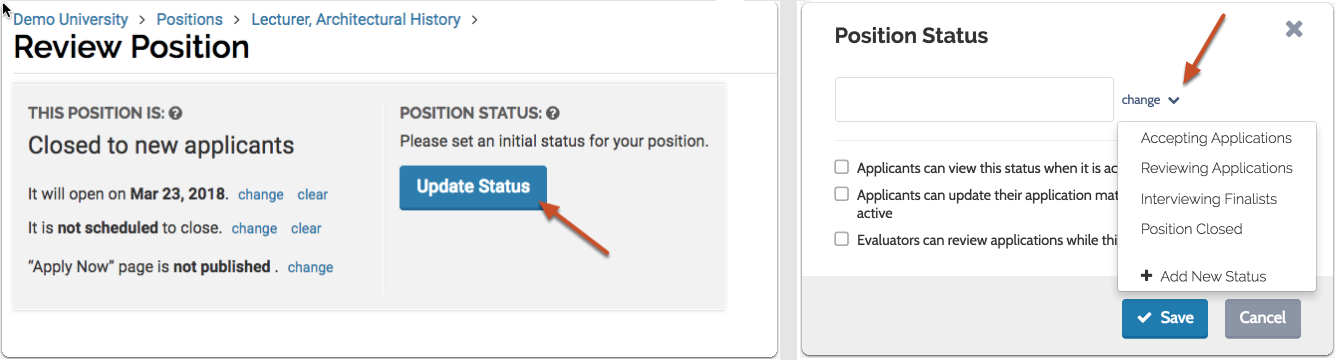
Click the Update Status button and select “Accepting Applications” from the drop down menu. The three default permissions related to this status – and other statuses used later in the search – have been set by UW, but can be changed by the search Administrator according to the unit’s needs.
After making desired adjustments, click Save.
Publish the position
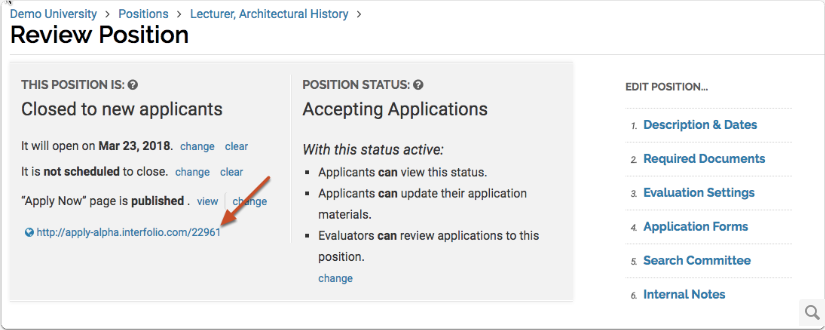
The approved position will be automatically published and ‘live’ when you reach the Position Opens date entered earlier in the Create a Position process. If your position gets approved well in advance of the Position Opens date, you can manually publish it by selecting the change option indicated below or edit the Position Opens date by selecting the Description & Dates link from side menu.
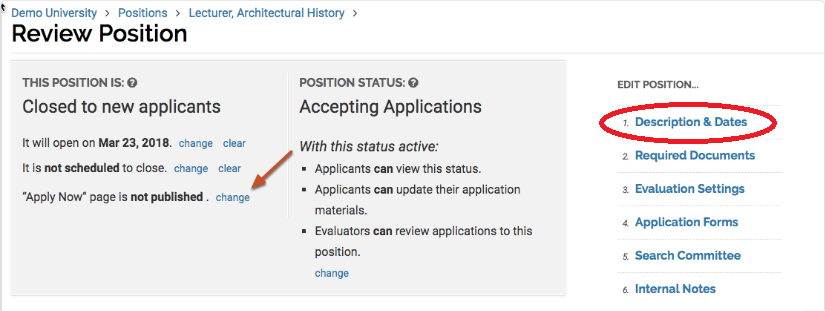
When a position is published, a unique URL will appear in the bottom left corner of the window as indicated below. You must copy/paste this URL into the advertisement copy you use when posting on external sites (e.g., journals, job boards, etc.) and direct applicants to follow the URL to apply for the position. If the URL is not included in an ad, applicants will have no way to apply for the position.
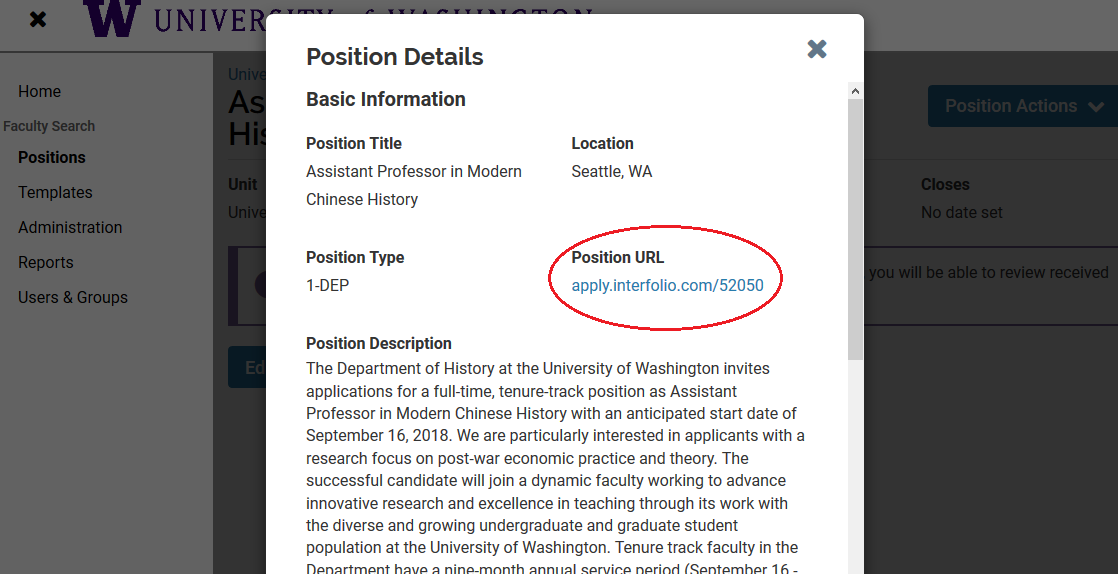
If you want to prep your external ads in advance in order to have them ready to post as soon as your position is approved, you can also retrieve the unique URL by going to the Positions home page, selecting your position, clicking on the Position Actions menu in the top left corner, and selecting “View Position Details”.
Position announcement
After you create a position and the position has passed its open date, or you have manually published it, FS generates a landing page announcing the position. The URL directs applicants to this landing page where they will start the application submission process.
Congratulations! You have completed the Create a Position process and your position is now up and running.
For guidance on the next phase of a competitive search, please review the Managing a Search User Guide.
Last updated August 18, 2022